

Using either VSC or Jupyter lab (run pixi run editor), go to the root of your project folder and open the authors.yml file and specify your name, your institution (and details of your supervisor).
Next, open the myst.yml file, change the title, the keywords, the date and the github url which is set to the original starterkit repo by default.
If you are from another university, you want to change the icons and logo’s in the style folder, and redirect to these in the myst.yml file in the site - options section.
If you have made these changes locally, commit and push these changes to github.
View your thesis online
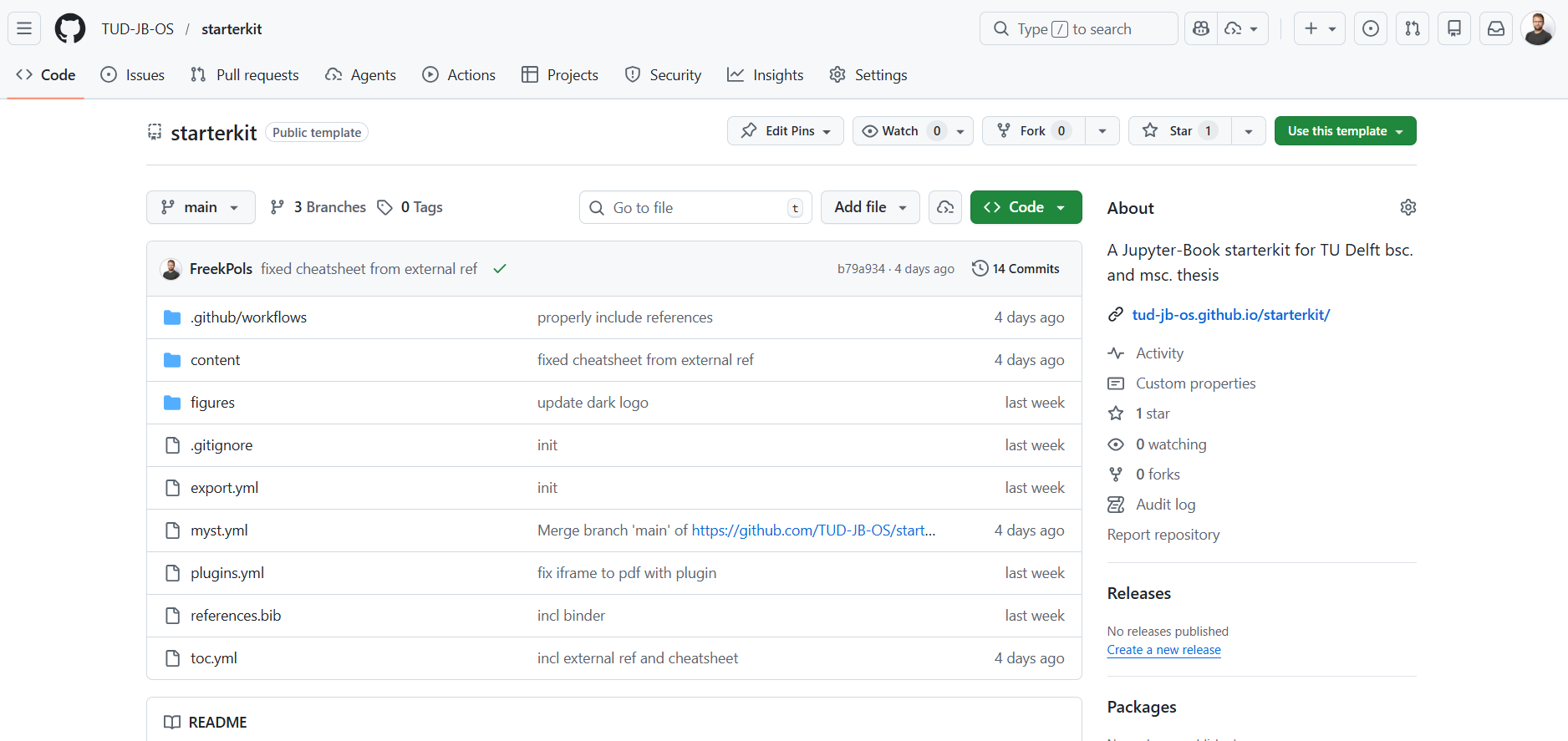
The previous steps set up your repository with GitHub Pages using a GitHub Actions workflow. That action automatically builds your book (a website) and deploys it online. The URL of your book is based on your GitHub username:
https://USERNAME.github.io/<reponame>You can also find the link easily from you GitHub repository home page under the “About” section on the right-hand side (illustrated in Figure 1).
You also have automatically two pdf’s based on a LaTeX thesis and Typst thesis template. Two buttons can be found at the top right corner to inspect these pdf’s.
Ready?
Ready to write your thesis? Comment out this page in the toc.yml file: - file: content/Quickstart.md and your thesis repo is set. You can edit the existing files and add new files.
Not familiar with GitHub, VSC, markdown and/or Jupyter Book? All necessary information is covered in our TUD guide to open publishing with JupyterBook. More information is also available in the official Jupyter Book documentation. For quick references, we included a cheatsheet. Problems with Typst output? See the automatically build errorlog.